
OBD · BENCH · OPEN
PROFESSIONAL ECU PROGRAMMING
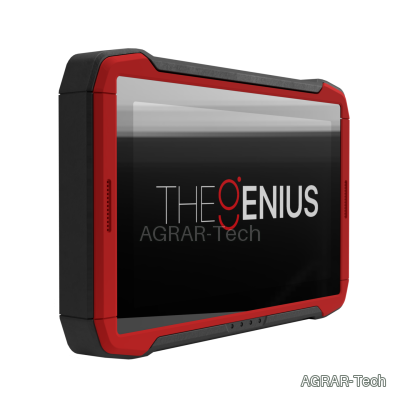
The Genius.
One device. Three ways to work.
For the workshop, mobile use and working with your file service: The Genius brings OBD, Bench and Open applications together in a stand-alone Dimsport programming tool.
Read vehicle data, write suitable files and clone supported ECUs. Available functions depend on the protocol, your activation and the actual control unit.
THE RIGHT CONNECTION FOR THE JOB
What do OBD, Bench and Open mean?
Through the diagnostic port.
Connect through the vehicle's diagnostic interface while the ECU remains installed. The activated protocol determines which reading and writing functions are available.
Directly to the ECU.
Connect to the ECU's external connectors following its wiring instructions. With a suitable Bench protocol, the housing stays closed. Cables, pin assignments and power supply must match the ECU.
With the housing open.
Some procedures require opening the ECU and connecting to designated contact points. This requires expertise, the correct setup and the specific manufacturer's instructions.
Your vehicle. The right activation.
Cars, motorcycles, commercial vehicles, agricultural machinery and marine applications are covered by the relevant activations. Check your vehicle and ECU in the application list, then select the required coverage and accessories in the shop.
Standard mode guides you through vehicle category, manufacturer, model and engine. Experienced users can select an available protocol directly in Advanced mode. Different ECUs or software versions may be fitted even within the same model range.
Find your vehicle in the application list →From first connection to support.
Use TGUtility for setup and file transfer. Once payment for your The Genius order is confirmed, the installer and illustrated guide become available in your customer account. Agrar-Tech helps you choose a suitable configuration and get started.
The Genius performs reading and writing without a permanently connected PC. Establish the required connection for PC setup, file transfer, updates and remote support.
The device provides support tickets and licence information. Existing cables can be reused with the appropriate adapter, subject to checking suitability for the specific connection.
Build your The Genius setup.
Choose hardware, activations and additional cables in the shop. The product page lists the kit contents, options and prices. Vehicle coverage, licence scope and terms depend on your selected configuration.
Actual compatibility is determined by the application list and the activated protocol.