
PARTNER AREA
Your technical center.
Vehicles, orders and permissions. Select the desired area on the left.
Access is being verified …
| Vehicle category | Manufacturer | Model | Designation | Power | BHP | Year of manufacture | Fuel | Emission standard | ECU | New Genius | Trasdata plugin | Cables & adapters | Bench | My Genius | Rapid | Tools | Original model | Technical data | Source page | Source line |
|---|---|---|---|---|---|---|---|---|---|---|---|---|---|---|---|---|---|---|---|---|
| Loading data … | ||||||||||||||||||||
The full manufacturer details support technical examination. Check license, software version and reading function before use in the tool. For New Trasdata the highest plugin number of the vehicle entry is used. Empty fields remain as not specified.
Data status and update
New application list ready? The import checks all vehicle lines and only replaces the data status after successful validation. The technical history remains traceable internally.
YOUR TEAM
Manage users.
MANAGE SALES PRICES
Prices & categories.
Set net base prices for a category including its subcategories or for individual items. Check every change first in the preview.
Price management is loading on opening …
A percentage change is always calculated from the catalog price. A fixed price replaces the previous net base price. An individual item rule has priority; otherwise, the rule of the most specific assigned category applies. Surcharges for activations, cables and other accessories remain unchanged. Price information in inquiries remains non-binding.
Price preview
| Items | Catalog base net | Current net | After saving net |
|---|
Saved rules
When resetting, only this rule is removed. Then a remaining superior rule or the catalog price applies again.
Change history
Saved price changes and reset rules with time and user.
TECHNICAL DOCUMENTS
Protocol instructions.
Store the PDF collections for New Genius and New Trasdata. Matching instructions appear automatically with the respective protocol in the vehicle database.
Transferred archives
Removing an upload archive frees storage space. Already imported PDF instructions remain stored.
How to open an instruction
- Open the vehicle database and search the machine.
- Click on New Genius the flash protocol or on Trasdata plugin the displayed highest plugin number of this vehicle entry.
- If there are several documents, select the appropriate language or version. The PDF opens in a new tab.
The instruction must match the actual control unit, tool and software version. A missing file is explicitly shown as not stored.
YOUR ONLINE SHOP
Shop & PayPal.
Set up payment and shipping. Test purchases are only visible to administrators.
How to set up the shop
- Enter sandbox or live access and select “Save access, check & set up webhook”. New data is automatically saved before checking.
- Add shipping/sales information and save. If requirements are missing, the data remains saved and direct purchase remains disabled.
- Perform sandbox test purchase with a separate PayPal test buyer.
- Save and check live access; then release own prices and activate direct purchase.
Confirmed live payments automatically generate an order confirmation for the buyer and info@agrar-tech.de. You then process invoices and delivery in your operational workflow.
SALES & SHIPPING
Orders.
Payments are matched exclusively with PayPal. You can maintain processing and shipping status yourself.
PHOTO → VEHICLE
Identify a vehicle registration document.
German registration document or Croatian Prometna dozvola: photograph the technical data, check the results and find matching vehicles.
1. Select a photo
The make, model and technical fields must be clearly legible. Please cover or crop out names, addresses and registration numbers.
Use your finger or mouse to draw a box around the vehicle data you need.
When you select “Analyse photo”, the selected crop is processed exclusively on our server. The photo is not stored permanently on our server. Results remain in this view and are not automatically added to the vehicle database.
2. Check the details
Check uncertain or missing values against the original document and correct them if necessary.
3. Suggested vehicles
Suggestions do not confirm the exact engine or ECU version. Check the technical vehicle data before carrying out any work.
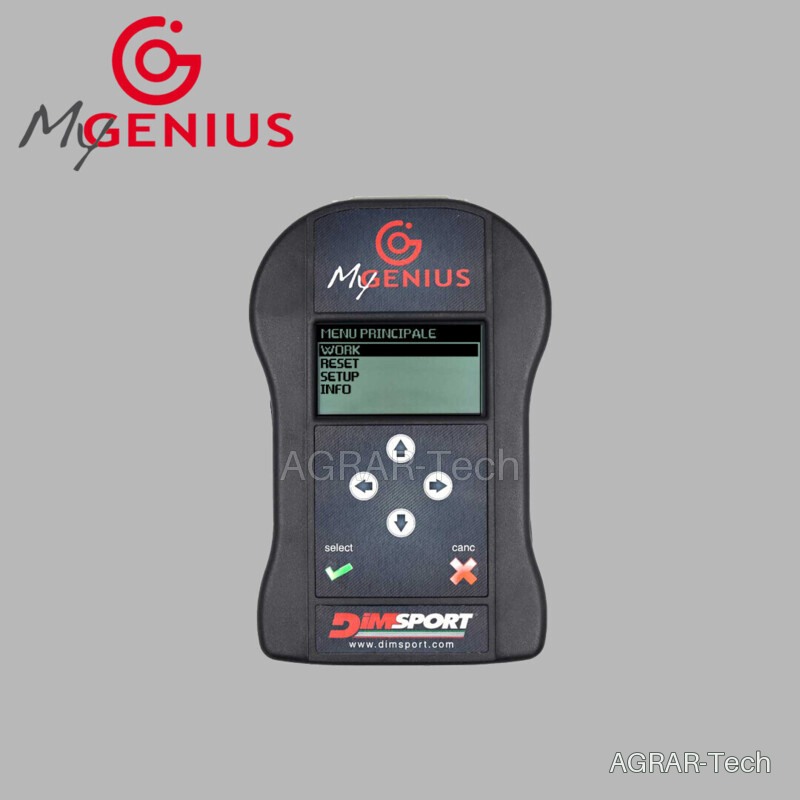
MyGenius · Software & setup
Unlocked after a paid order
MyGenius Client and the installation guide are for buyers. Create a customer account and order your MyGenius. Both are unlocked automatically in your account after payment is confirmed.

The Genius · software & setup
Unlocked after a paid order
Software and installation instructions become available in your account after a paid The Genius order.
Service links for existing customers
Create a personal link for customers who already own a device from Agrar-Tech. The link opens software, instruction and TeamViewer without a customer account. Whoever receives the link can use it until expiration or blocking.
The Genius · store original files
Upload the original installer from Dimsport and, if necessary, the manufacturer manual. The files are stored protected and provided only to authorized buyers, team accounts or service links.
YOUR DEALER NETWORK
Dealer registration & permissions
Check new requests, assign individual functions and manage existing dealer accounts. Dealers receive no administrative rights. Permission is possible after a paid device purchase. Previous purchases can be retrospectively added via “Confirm existing purchase manually”.
Registrations
Approved dealers
Information in dealer area
Publish notes for authorized dealers. Drafts are visible only to you. No newsletters are sent.
YOUR CONTENT
Knowledge management
Add your own guides, PDFs or information for local help. New entries start as drafts visible only to you.